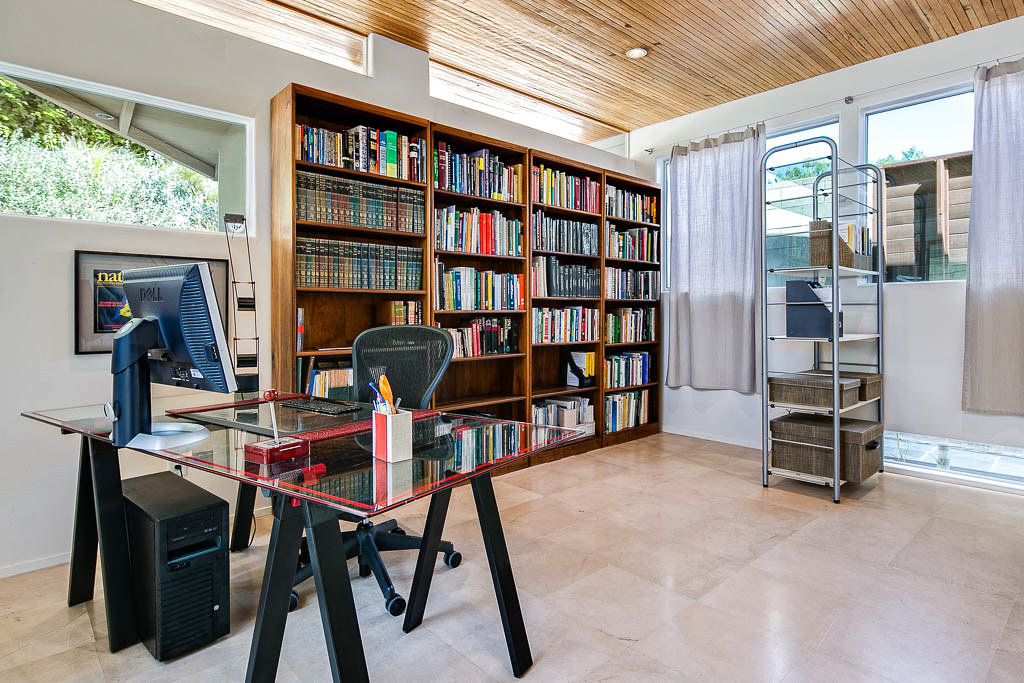
Photo by Jeremy Levine Design via flickr (BY)
The lines between personal and professional life have blurred significantly, particularly with the widespread adoption of remote and hybrid work models. For many, the convenience of using a single device for both work and personal tasks is undeniable. However, this convergence also introduces a complex array of security, privacy, and productivity challenges. This is precisely where the concept of a separate work profile setup on personal devices becomes not just beneficial, but often essential.
What Constitutes a Separate Work Profile?
At its core, a separate work profile is a dedicated, insulated environment on a personal device (like a smartphone, tablet, or laptop) that houses all work-related applications, data, and configurations. Think of it as a "device within a device," designed to keep professional activities entirely distinct from personal ones. This isolation is achieved through various technological means, depending on the operating system and management tools employed.
For instance, on Android devices, this is often implemented via "Android Enterprise" features, creating a managed profile that IT administrators can control without touching personal data. On iOS, solutions like Apple's "User Enrollment" provide similar separation for BYOD (Bring Your Own Device) scenarios, leveraging managed Apple IDs. For laptops, particularly Windows and macOS, the approach might involve virtual machines (VMs), dedicated user accounts, or containerization technologies that encapsulate work applications and data. The overarching goal is to create a secure, manageable sandbox where corporate policies can be enforced without infringing on the user's personal digital space or compromising corporate data.
Why This Approach Matters in the Modern Remote Landscape
The proliferation of remote work, accelerated by global events, has dramatically increased the reliance on personal devices for professional duties. The Microsoft Work Trend Index consistently highlights the prevalence of hybrid work, with a significant portion of employees feeling more productive remotely [https://www.microsoft.com/en-us/worklab/work-trend-index]. This productivity, however, can come at a cost if not managed securely.
For organizations, the primary driver for implementing separate work profiles is security. When employees use personal devices, the risk of data breaches, malware infections, and compliance violations skyrockets. A personal device might lack corporate-grade security software, be exposed to risky personal browsing habits, or contain unapproved applications. A separate work profile mitigates these risks by:
- Containing Corporate Data: Work-related files, emails, and applications are isolated from personal photos, social media, and games. If the device is lost or the employee leaves the company, IT can remotely wipe only the work profile, leaving personal data intact.
- Enforcing Security Policies: IT can enforce specific security policies (e.g., strong passwords, encryption, VPN usage, application whitelisting) within the work profile without imposing them on the user's personal side.
- Preventing Data Leakage: Restricting copy-pasting between work and personal profiles, or preventing work files from being saved to personal cloud storage, helps prevent inadvertent or malicious data exfiltration.
- Compliance: Many industry regulations (e.g., GDPR, HIPAA, PCI DSS) demand stringent data protection. Separate work profiles help organizations meet these compliance requirements by ensuring sensitive corporate data is handled within a controlled environment.
For employees, the benefits extend beyond mere compliance or security:
- Privacy: This is a significant concern for employees using personal devices. A separate work profile ensures that IT administrators cannot access personal emails, photos, browsing history, or applications. This clear delineation respects employee privacy, fostering trust and reducing friction.
- Work-Life Balance: The distinct separation can psychologically reinforce boundaries between work and personal life. Users can "turn off" their work profile at the end of the day, reducing the temptation to constantly check work notifications or blend tasks. Atlassian's remote work blog often emphasizes the importance of boundaries for employee well-being [https://www.atlassian.com/blog/remote-work].
- Improved Focus: A dedicated work environment minimizes distractions from personal notifications and applications, helping maintain focus during work hours.
- Reduced Device Clutter: All work-related apps and files are neatly organized within one profile, reducing overall clutter on the device's main interface.
Who Stands to Benefit Most?
This setup is particularly beneficial for:
- Organizations with BYOD Policies: Companies that allow or encourage employees to use their personal smartphones, tablets, or laptops for work.
- Remote and Hybrid Workforces: Where employees frequently switch between home, office, and other locations, and rely on their own devices for flexibility.
- Industries with High Security and Compliance Needs: Such as finance, healthcare, legal, and government, where data protection is paramount.
- Individuals Working on Sensitive Projects: Even if an organization doesn't formally mandate it, individuals handling highly confidential information might choose to implement such a separation for their own peace of mind and data integrity.
- Contractors and Freelancers: Who often use their own devices to work for multiple clients, benefiting from compartmentalizing different client projects.

Photo by Dossy via flickr (BY-SA)
Practical Steps to Establish a Separate Work Profile
The exact implementation varies significantly based on the device's operating system and the organization's Mobile Device Management (MDM) or Unified Endpoint Management (UEM) solution. Here's a general overview of the approaches:
For Mobile Devices (Android and iOS)
Most organizations will leverage an MDM/UEM solution for this, such as Microsoft Intune, VMware Workspace ONE, Jamf, or MobileIron.
Android (Work Profile):
- Enrollment: Your IT department will typically provide instructions to enroll your personal Android device. This often involves downloading a specific MDM agent app (e.g., Intune Company Portal, Workspace ONE Intelligent Hub).
- Profile Creation: During enrollment, the MDM agent will guide you through creating a "Work Profile." This is a native Android feature that creates a separate section on your device.
- App Installation: Work apps (email, calendar, chat, CRM, document editors) will appear within this work profile, often distinguished by a small briefcase icon.
- Policy Enforcement: IT will push security policies (e.g., password complexity, screen lock timeout, data encryption) directly to this work profile.
- Data Separation: Data within the work profile is encrypted and isolated. You generally cannot copy data directly from a work app to a personal app, and vice-versa, unless explicitly allowed by IT policy.
iOS (User Enrollment/Managed Apple ID):
- Enrollment: Similar to Android, you'll likely download an MDM agent app. Apple's "User Enrollment" is designed specifically for BYOD, creating a managed volume for work data.
- Managed Apple ID: Often, a managed Apple ID is issued for work purposes, separate from your personal Apple ID. This ID is used to access corporate resources and install managed apps.
- Managed Apps: Work apps are installed and managed by the MDM. They appear alongside personal apps but are managed by the organization.
- Data Segregation: While iOS doesn't have a visual "work profile" container like Android, User Enrollment ensures that work data within managed apps is cryptographically separated from personal data. IT can only manage or wipe corporate data, not personal content.
For Laptops (Windows and macOS)
Laptop separation often requires more deliberate setup by the user or more advanced corporate solutions.
1. Dedicated User Accounts (Simplest, Least Secure):
- Windows: Create a separate standard user account for work. This provides some separation of user profiles, documents, and settings.
- macOS: Create a new standard user account.
- Pros: Easy to set up, no special software needed.
- Cons: Limited security isolation. Applications installed by one user can often be accessed by others (though data is separate). No enforcement of corporate policies. Not suitable for stringent security requirements.
2. Virtual Machines (VMs) (More Secure, Resource Intensive):
- Software: Install virtualization software like VMware Workstation Player (Windows/Linux), VirtualBox (cross-platform), or Parallels Desktop (macOS).
- Operating System: Install a fresh copy of Windows or a Linux distribution as a "guest OS" within the VM.
- Work Environment: Install all work applications and store all work data only within this virtual machine.
- Pros: Excellent isolation. The VM acts as a completely separate computer. Easy to backup, restore, or wipe the entire work environment.
- Cons: Requires significant system resources (RAM, CPU, storage). Can be complex to set up and maintain. Performance overhead.
3. Containerization (Advanced, Often IT-Managed):
- Technologies: Solutions like Docker (for specific applications), or enterprise-grade containerization/virtual desktop infrastructure (VDI) like Citrix Workspace or VMware Horizon.
- How it Works: Rather than a full OS, containerization isolates specific applications and their dependencies. VDI streams a virtual desktop from a server.
- Pros: Very high security and isolation. Centralized management for IT.
- Cons: Often requires significant IT infrastructure. Can be complex for individual setup.
Checklist for Implementing a Work Profile
| Aspect | Consideration | Mobile BYOD (MDM) | Laptop (VM/User Account) |
|---|---|---|---|
| Device Enrollment | Follow IT's instructions for MDM agent installation. | ✅ | ❌ (N/A for personal laptops without corporate MDM) |
| OS Updates | Keep both personal and work environments updated. | ✅ (IT may enforce minimum OS versions) | ✅ (Manual responsibility) |
| Antivirus/Anti-malware | Ensure protection for both environments. | ✅ (Often pushed by MDM for work profile) | ✅ (Manual installation for personal & VM) |
| Strong Passwords/Biometrics | Mandatory for device and work profile/VM. | ✅ (Enforced by MDM) | ✅ (Manual setup) |
| Data Backup | Regularly back up work data (to corporate cloud/servers). | ✅ (Managed by IT for work data) | ✅ (Manual backup of VM/user profile) |
| VPN Usage | Connect to corporate network via VPN when accessing internal resources. | ✅ (Often auto-configured by MDM for work profile) | ✅ (Manual VPN client installation) |
| App Installation | Only install approved work apps within the work profile/VM. | ✅ (IT-controlled app store for work profile) | ✅ (Manual installation within VM/user profile) |
| Data Transfer Policy | Understand and adhere to restrictions on moving data between profiles. | ✅ (Enforced by MDM) | ✅ (Manual discipline) |
| Offboarding Procedure | Know how to securely wipe work data when leaving a company. | ✅ (Remote wipe by IT) | ✅ (Manual deletion of VM/user profile, data deletion) |
| Personal Data Protection | Ensure IT cannot access personal data. | ✅ (Guaranteed by Android Work Profile/iOS User Enrollment design) | ✅ (Guaranteed by VM isolation/separate user profiles) |
Common Pitfalls and Risks to Avoid
While the benefits are clear, improper setup or management can introduce new challenges:
- User Friction and Adoption Issues: Overly restrictive policies within the work profile can frustrate users. IT must balance security with usability. Poor communication about the benefits of separation can also lead to low adoption [https://hbr.org/topic/subject/remote-work].
- Performance Degradation: Running multiple profiles or virtual machines, especially on older devices, can lead to sluggish performance, impacting productivity.
- Data Loss (Personal Side): If IT accidentally wipes the entire device instead of just the work profile (a rare but possible scenario with poorly configured MDM), personal data could be lost. This underscores the need for robust MDM configuration and clear communication.
- Shadow IT via Personal Side: If the work profile is too restrictive, employees might bypass it and use personal apps (e.g., personal cloud storage, unapproved messaging apps) to share work data, creating "shadow IT" and negating the security benefits.
- Complacency: Users might assume the work profile makes their device impervious to threats, leading to less caution on the personal side, which could still indirectly affect the work environment through device-level vulnerabilities.
- OSHA Telework Considerations: While not directly about profiles, OSHA's telework guidance emphasizes the employer's responsibility for a safe work environment [https://www.osha.gov/telework]. This extends to digital safety. A poorly secured personal device, even with a work profile, could still expose an employee to digital hazards that impact their ability to work safely.
To mitigate these, organizations should provide clear guidelines, thorough training, and accessible IT support. Employees must understand their responsibilities and the implications of their actions within both profiles.
What Should Readers Do Next?
For employees, the next step is to engage with your IT department. Inquire about your organization's BYOD policy and whether they support or mandate separate work profiles. If they do, follow their specific instructions for enrollment and usage. If your organization does not offer this, and you deal with sensitive information, consider proposing it, or explore personal solutions like virtual machines for your laptop.
For IT professionals and business leaders, the imperative is to evaluate and implement a robust MDM/UEM solution that supports work profile functionality. Develop clear, comprehensive BYOD policies that outline acceptable use, security requirements, and privacy guarantees for employees. Regular training and ongoing support are crucial for successful adoption and maintenance.
Implementing separate work profiles is a critical strategy for navigating the complexities of remote work, ensuring both robust security for organizations and essential privacy for employees. It's an investment in digital hygiene that pays dividends in data protection, compliance, and work-life balance.
Frequently Asked Questions
Q1: Is a separate work profile the same as having two phones?
A1: No, it's not the same as having two physical phones, but it achieves a similar level of separation. A work profile creates a logical separation on a single device, meaning work apps and data are isolated from personal ones. You still only carry one device, but it functions like two distinct environments, each with its own set of apps and data, and potentially different security policies.
Q2: Can my company see my personal photos or messages if I use a work profile on my phone?
A2: No, generally not. The fundamental design of work profiles (especially Android Enterprise Work Profiles and Apple's User Enrollment) is to ensure privacy. Your company's IT department can only manage and access data, applications, and settings within the work profile. They cannot access your personal photos, messages, browsing history, or personal applications outside of that designated work space. This strict boundary is a core feature for BYOD privacy.
Q3: What happens to my work profile data if I leave the company?
A3: If you leave the company, your IT department will typically initiate a "remote wipe" of the work profile. This action will delete all corporate applications, data, and configurations from the work profile on your device, leaving your personal data untouched. This ensures corporate data security while respecting your personal privacy. You will usually be notified before this happens.
Q4: Does a separate work profile slow down my device?
A4: For mobile devices, the impact on performance is usually minimal. Modern operating systems are designed to handle work profiles efficiently. For laptops using virtual machines, there can be a noticeable performance impact, especially if your laptop has limited RAM or a slower processor, as the VM runs a full operating system alongside your main one. Using dedicated user accounts on a laptop typically has no significant performance impact.
Q5: Can I copy and paste information between my work profile and my personal profile?
A5: This depends on your organization's security policies. MDM solutions allow IT administrators to configure this setting. Often, for security reasons, copy-pasting text or files directly between the work profile and the personal profile is restricted or blocked to prevent sensitive corporate data from inadvertently (or maliciously) entering an unsecured personal environment.
Q6: Do I need a separate work profile if my company provides me with a work device?
A6: If your company provides you with a dedicated work device (laptop, smartphone), a separate work profile on that device is usually not necessary for the employee because the entire device is considered corporate property and is fully managed by IT. However, some companies might still use work profiles on corporate-issued devices to further segment highly sensitive applications or to provide a "personal use" profile on a corporate device, though this is less common than BYOD scenarios.
References
- Microsoft Work Trend Index
- OSHA Telework Guidance
- Atlassian Remote Work Blog
- Harvard Business Review Remote Work
This article provides general educational information and should not be taken as specific technical or policy advice.
Referenced Sources
- Microsoft Work Trend Index — Microsoft
- OSHA Telework Guidance — OSHA
- Atlassian Remote Work Blog — Atlassian
- Harvard Business Review Remote Work — HBR


