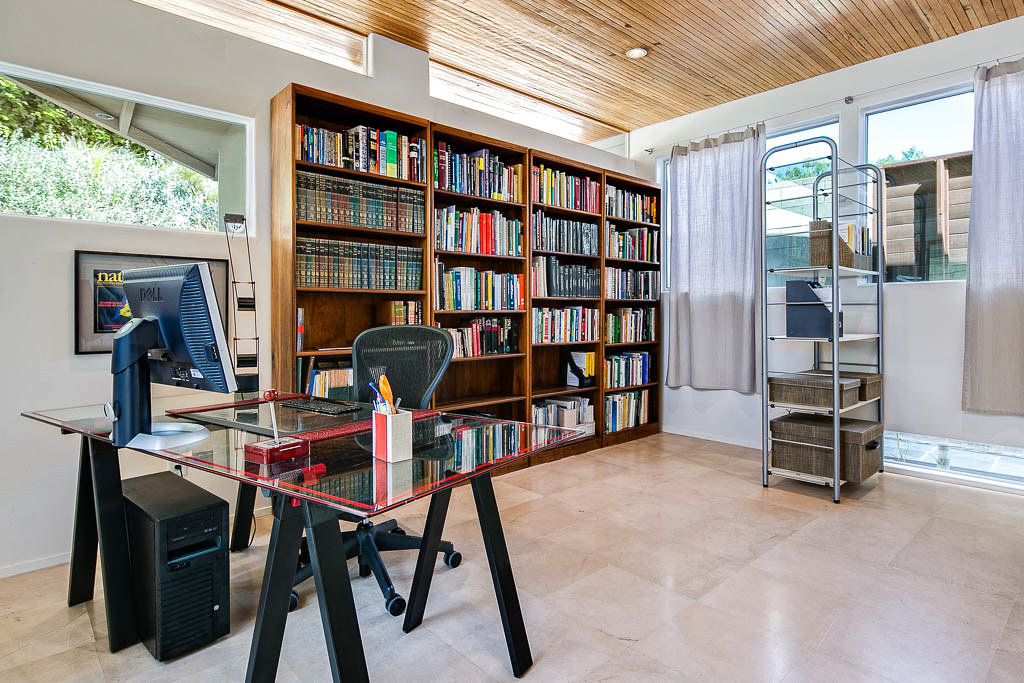
Photo by faster panda kill kill via flickr (BY)
Video calls have become the bedrock of modern remote work, transitioning from occasional convenience to daily necessity for professionals across industries. As organizations increasingly embrace distributed teams, the quality of our virtual interactions directly impacts productivity, collaboration, and even professional perception. A well-executed video call isn't just about a stable internet connection; it's fundamentally about how clearly and professionally you present yourself. This article delves into the critical, yet often overlooked, aspects of lighting and camera setup, providing practical guidance to elevate your virtual presence from acceptable to exceptional.
Key Takeaways
- Prioritize Light: Good lighting is paramount, often more impactful than an expensive camera. Aim for soft, diffused front lighting.
- Camera Angle Matters: Position your camera at eye level to foster a sense of direct engagement and avoid unflattering angles.
- Background Simplicity: A clean, uncluttered background minimizes distractions and maintains focus on you.
- Audio is Half the Battle: While this article focuses on visuals, remember that clear audio is equally vital for effective communication.
- Practice and Refine: Regularly test your setup and make small adjustments to optimize your visual presentation.
The Imperative of Professional Visuals in Remote Work
The shift to remote work has dramatically reshaped professional communication. As the Microsoft Work Trend Index consistently highlights, hybrid and remote models are here to stay, with video conferencing central to daily operations [^1]. This means that your digital persona, projected through your webcam, is often the primary way colleagues, clients, and partners perceive you. A poorly lit, awkwardly framed, or low-resolution video feed can inadvertently convey a lack of preparedness, professionalism, or even engagement. Conversely, a thoughtfully composed visual presence instills confidence and enhances your ability to connect and communicate effectively.
This guidance is for anyone who regularly participates in video calls – from sales professionals conducting virtual pitches to project managers leading remote teams, and individual contributors collaborating on shared documents. If your work involves synchronous virtual interaction, then optimizing your lighting and camera setup is an investment in your professional effectiveness and personal brand.
Illuminating Your Presence: Mastering Video Call Lighting
Lighting is arguably the single most important factor in a professional video call setup. Even the most advanced camera struggles to produce a clear, flattering image without adequate illumination. The goal is to achieve soft, even light that flatters your face without creating harsh shadows or blown-out highlights.
Understanding Light Direction
The direction of your primary light source fundamentally dictates the quality of your image:
- Front Lighting (Ideal): Position your main light source directly in front of you, slightly above eye level. This illuminates your face evenly, minimizing shadows and bringing out detail. Natural light from a window is excellent for this if you can face it directly. If using artificial light, a ring light or softbox placed strategically works wonders.
- Backlighting (Avoid): This occurs when a strong light source, like a window, is behind you. Your camera's automatic exposure will try to compensate for the bright background, often silhouetting you and making your face appear dark and underexposed.
- Side Lighting (Use with Caution): Light coming predominantly from one side can create dramatic shadows, highlighting textures and contours. While artistic in photography, for professional video calls, it can make you look unevenly lit or even sickly. If side light is unavoidable, try to balance it with a softer fill light on the opposite side.
- Top Lighting (Avoid): Overhead lights, especially harsh recessed cans, can cast unflattering shadows under your eyes, nose, and chin, making you look tired or severe. If your primary room lighting is overhead, you'll need supplemental front lighting to counteract this.
Types of Lighting Equipment
While natural light is often the best and cheapest option, it's not always available or consistent. Here are artificial lighting solutions:
- Ring Lights: Popular for their even, shadow-reducing illumination, ring lights provide a soft, diffused light that encompasses your face. Many come with adjustable brightness and color temperature (warm to cool). A 10-12 inch ring light is often sufficient for a typical remote setup.
- LED Panels/Softboxes: These provide a broader, softer light source than a bare LED. A small desktop LED panel with a diffuser or a compact softbox can simulate natural window light and is highly effective. Look for panels with high Color Rendering Index (CRI) for accurate skin tones.
- Diffusion: Regardless of your light source, diffusing it is key. This means softening the light so it's not harsh. A sheer curtain over a window, a softbox attachment, or even a piece of white parchment paper (carefully positioned away from heat sources) can diffuse a harsh light.
Practical Tip: Experiment with color temperature. Most ring lights and LED panels offer adjustable color temperature, measured in Kelvin (K). Warmer tones (around 3000K-4000K) can feel more inviting, while cooler tones (5000K-6500K) mimic daylight and provide a crisp look. Find what flatters your skin tone and suits your environment.
Framing Your Professional Image: The Camera Setup
Once your lighting is dialed in, your camera's positioning and settings are the next crucial steps.
Camera Placement and Angle
- Eye Level is Key: Position your webcam so the lens is at or very slightly above eye level. This creates a natural, direct line of sight, making it feel like you're looking directly at the person you're speaking with. This also avoids the dreaded "up-the-nose" angle. Use books, a monitor stand, or a small tripod to achieve the correct height.
- Distance: Aim for your head and shoulders to fill approximately two-thirds of the frame. This provides enough context of your upper body without making you appear too close or too far away.
- Centering: Keep yourself centered in the frame. Most video conferencing software has a self-view; use it to adjust your position.
Choosing Your Camera
- Built-in Laptop Webcams: While convenient, these are often the weakest link. Many older laptop cameras are low resolution (720p) and perform poorly in less-than-ideal lighting.
- External Webcams: A significant upgrade. Look for 1080p (Full HD) resolution as a minimum, with 4K options available for even sharper detail. Brands like Logitech (e.g., C920, StreamCam, Brio) and Elgato (Facecam) are popular choices. Features like auto-focus, good low-light performance, and a wide field of view (FoV) are beneficial.
- Mirrorless/DSLR Cameras: For the ultimate professional look, many modern mirrorless or DSLR cameras can be used as webcams via software (e.g., Canon's EOS Webcam Utility, Sony's Imaging Edge Webcam) or dedicated capture cards (e.g., Elgato Cam Link). This offers superior image quality, depth of field control, and lens flexibility, but it's a more complex and expensive setup.
Camera Settings (if applicable)
Many external webcams and camera utility software allow for fine-tuning:
- White Balance: Ensures colors are accurate. Auto white balance usually works well, but if your skin looks too orange or blue, you might need to adjust it manually.
- Exposure/Brightness: While lighting is primary, you can make minor adjustments here to brighten or darken your image.
- Field of View (FoV): Some cameras offer adjustable FoV. A narrower FoV focuses more on you and less on your background, which can be useful if your background isn't pristine.
Crafting Your Backdrop: The Importance of the Environment
Your background is an extension of your professional persona. A cluttered, messy, or distracting background can undermine your credibility.
- Simplicity is King: A plain wall, a neatly organized bookshelf, or a minimalist office setup works best. Avoid busy patterns or highly reflective surfaces.
- Cleanliness: Ensure your background is tidy. Remove any personal items that might be unprofessional or distracting.
- Depth: If possible, create a little distance between yourself and the background. This can add a subtle sense of depth and professionalism, especially if your camera has a good lens.
- Virtual Backgrounds (Use with Caution): While popular, virtual backgrounds can often look artificial, especially if your lighting isn't perfect or you lack a green screen. They can also cause artifacts around your hair or hands. If you must use one, choose a professional, non-distracting image and ensure your lighting is excellent.
A Practical Checklist for Your Video Call Setup
| Category | Item | Best Practice | Why It Matters |
|---|---|---|---|
| Lighting | Primary Light Source | Soft, diffused light directly in front of you (window, ring light, softbox). | Eliminates harsh shadows, illuminates face evenly, enhances clarity. |
| No Backlighting | Ensure no strong light sources are directly behind you. | Prevents silhouetting, maintains proper exposure of your face. | |
| No Harsh Overhead Light | Supplement with front lighting if overhead lights are primary. | Avoids unflattering shadows under eyes and chin. | |
| Color Temperature | Adjust to natural daylight (5000K-6500K) or slightly warmer (3000K-4000K). | Ensures accurate skin tones and a pleasant visual mood. | |
| Camera | Positioning | Lens at eye level or slightly above. | Creates direct eye contact, avoids unflattering angles. |
| Framing | Head and shoulders fill ~2/3 of the frame, centered. | Professional framing, shows engagement without being too close or distant. | |
| Resolution | Use 1080p (Full HD) minimum for external webcams. | Provides clear, sharp image detail. | |
| Clean Lens | Wipe the camera lens with a microfiber cloth before each call. | Removes smudges, ensuring a crisp image. | |
| Background | Decluttered & Simple | Plain wall, tidy bookshelf, or minimalist office. Avoid busy patterns. | Minimizes distractions, keeps focus on you. |
| Professional Appearance | Free from inappropriate or overly personal items. | Maintains a professional image for colleagues and clients. | |
| Depth (Optional) | Create some space between you and the background. | Adds a subtle sense of professionalism and dimension. | |
| Audio | External Microphone (Recommended) | USB microphone (e.g., Blue Yeti, Rode NT-USB Mini) or headset. | Significantly improves clarity and reduces background noise, crucial for communication. |
| Mute When Not Speaking | Standard etiquette. | Prevents accidental noise transmission and improves call flow. |
Common Pitfalls and How to Avoid Them
Even with the best intentions, several common mistakes can undermine your video call presence.
- The "Cave Dweller" Effect: This is when you are poorly lit, often sitting in a dimly lit room with only your screen illuminating your face. It makes you appear shadowy and unapproachable.
- Solution: Introduce a dedicated front light source. Even a small desk lamp with a diffused light can make a huge difference.
- The "Witness Protection" Look (Backlighting): As mentioned, a strong light behind you turns you into a silhouette.
- Solution: Rearrange your setup so your light source is in front of you. Close blinds behind you if a window is the culprit.
- The "Nose Cam" or "Forehead Cam": Occurs when your camera is too low (looking up your nose) or too high (looking down on your forehead).
- Solution: Adjust your camera height. Use a laptop stand, books, or a monitor arm to bring the camera to eye level.
- The "Clutter Bomb" Background: A messy room, unmade bed, or distracting posters can draw attention away from you.
- Solution: Take five minutes before a call to clear your background. If a quick tidy isn't possible, consider a professional virtual background (with good lighting) or strategically position yourself against a plain wall.
- The "Shaky Cam": Holding your laptop or phone during a call can lead to a distracting, shaky image.
- Solution: Always use a stable surface or a tripod.
- Forgetting to Clean the Lens: A smudged webcam lens can make your image blurry or hazy, regardless of resolution.
- Solution: Make it a habit to quickly wipe your webcam lens with a microfiber cloth before important calls.
By systematically addressing your lighting, camera placement, and background, you can transform your video call presence from an afterthought into a powerful tool for effective communication and professional engagement. This attention to detail reflects a commitment to professionalism that resonates in any remote work environment, contributing to smoother interactions and stronger connections, as emphasized by resources like the Atlassian Remote Work Blog and Harvard Business Review's insights on remote work [^3], [^4].
Frequently Asked Questions
Q1: Do I really need to buy expensive equipment for good video calls?
A1: Not necessarily. While dedicated equipment can certainly enhance quality, significant improvements can be made with minimal investment. Start by optimizing natural light, adjusting your camera's height using items you already own (like books), and ensuring a clean background. A basic ring light or an external 1080p webcam is a relatively affordable upgrade that offers substantial improvement. High-end cameras are only necessary if your role demands broadcast-quality video.
Q2: What's the ideal color temperature for lighting during video calls?
A2: The ideal color temperature typically ranges from 3000K (warm white) to 6500K (cool daylight). Many people find that a neutral daylight-mimicking temperature around 5000K-5500K provides a professional and accurate representation of skin tones. Warmer tones (3000K-4000K) can create a cozier, more inviting feel, while cooler tones (6000K+) can appear very crisp but sometimes a bit sterile. Experiment to see what looks best in your environment and for your skin tone.
Q3: My room is very dark, and I don't have natural light. What's the best artificial lighting solution?
A3: In a dark room, a dedicated front light source is essential. A dimmable ring light (10-12 inches) is an excellent and popular choice, as it provides soft, even, and flattering illumination. Alternatively, a small LED panel with a diffuser placed directly in front of you can also work wonders. Ensure your chosen light source offers adjustable brightness and, ideally, adjustable color temperature to fine-tune your look.
Q4: How can I make my background look professional without a dedicated office space?
A4: Focus on simplicity and tidiness. Even if you're in a living room or bedroom, try to position yourself against the least cluttered wall. Remove any personal items that might be distracting or unprofessional. A strategically placed houseplant, a framed piece of art, or a simple, neat shelf can add a touch of professionalism without being overwhelming. If all else fails, and your lighting is good, a professional, non-distracting virtual background can be a last resort, but always test it first for artifacts.
Q5: Is it better to use my laptop's built-in webcam or my smartphone camera via an app?
A5: In most cases, your smartphone camera will offer significantly better image quality than a typical laptop's built-in webcam. Modern smartphone cameras have larger sensors, better lenses, and more advanced image processing. Apps like Camo or DroidCam allow you to use your phone as a high-quality webcam. Just ensure your phone is securely mounted at eye level and charging during the call to avoid battery drain.
Q6: My video feed looks grainy or pixelated. What could be the cause?
A6: Grainy or pixelated video is often a symptom of poor lighting or an older, lower-resolution webcam. First, ensure you have ample, soft front lighting. If the issue persists, your webcam might be struggling in low-light conditions, or it could be a 720p (or lower) resolution model. Upgrading to a 1080p external webcam with good low-light performance is the most effective solution. Sometimes, a slow internet connection can also cause video compression artifacts, leading to a pixelated appearance.
References
[^1]: Microsoft Work Trend Index: https://www.microsoft.com/en-us/worklab/work-trend-index
[^2]: OSHA Telework Guidance: https://www.osha.gov/telework
[^3]: Atlassian Remote Work Blog: https://www.atlassian.com/blog/remote-work
[^4]: Harvard Business Review Remote Work: https://hbr.org/topic/subject/remote-work
This article provides general educational information on optimizing video call setups. Individual results may vary based on equipment, environment, and specific needs.

Photo by Sean MacEntee via flickr (BY)
Referenced Sources
- Microsoft Work Trend Index — Microsoft
- OSHA Telework Guidance — OSHA
- Atlassian Remote Work Blog — Atlassian
- Harvard Business Review Remote Work — HBR