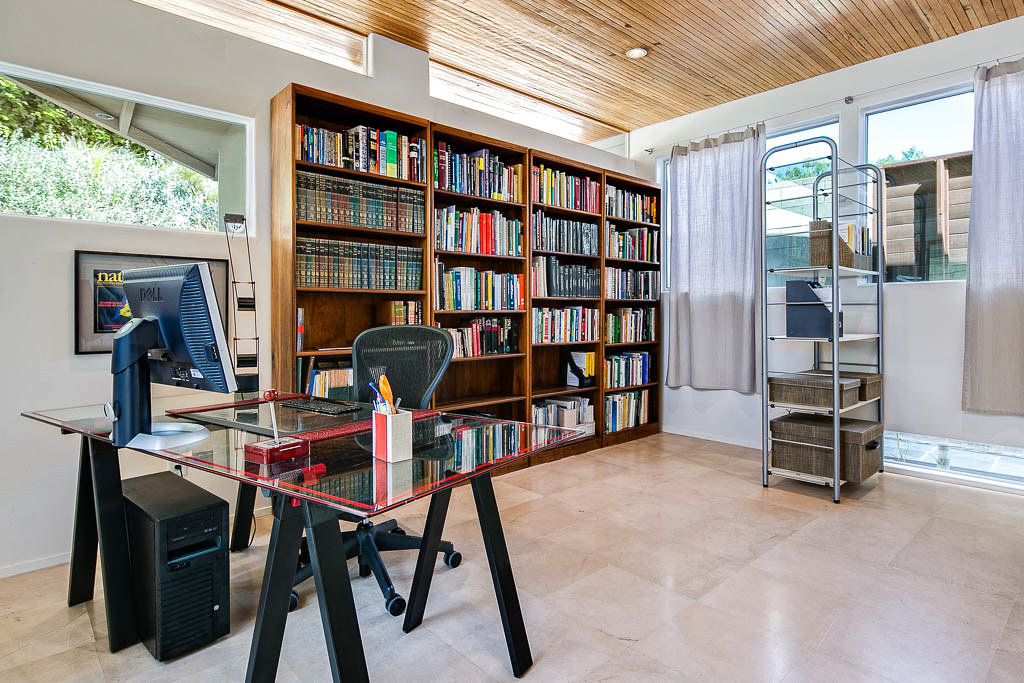
Photo by Sean MacEntee via flickr (BY)
The modern professional landscape has undergone a seismic shift, with remote work transitioning from a niche perk to a fundamental operational model for countless organizations. This transformation necessitates a thoughtful approach to creating a productive and ergonomic home office. A "Home Office Setup Guide" is a comprehensive blueprint designed to empower remote workers with the knowledge and actionable steps required to establish an efficient, comfortable, and sustainable workspace within their own homes. It addresses everything from foundational infrastructure to ergonomic considerations, digital tools, and maintaining work-life boundaries. Far beyond simply placing a laptop on a kitchen table, it emphasizes intentional design and strategic choices that directly impact productivity, well-being, and long-term career success in a remote environment.
This guide is primarily for anyone engaged in remote or hybrid work, from seasoned telecommuters to individuals just beginning their work-from-home journey. It’s particularly valuable for those looking to optimize an existing setup, mitigate common remote work challenges, or ensure their workspace adheres to best practices for health and productivity. Managers and HR professionals overseeing remote teams can also benefit from understanding these principles, enabling them to better support their employees in creating effective home office environments. Ultimately, it’s for anyone who recognizes that a well-designed workspace is not a luxury, but a critical component of professional efficacy and personal well-being in the distributed work era.
Key Takeaways
- Ergonomics are Non-Negotiable: Prioritize an ergonomic chair, proper monitor height, and a suitable desk to prevent strain and improve long-term health.
- Connectivity is King: Invest in reliable, high-speed internet and consider backup solutions to ensure uninterrupted workflow.
- Define Your Space: Establish a dedicated work area, even if small, to foster focus and delineate work-life boundaries.
- Lighting Matters: Optimize natural light and incorporate appropriate artificial lighting to reduce eye strain and improve mood.
- Digital Tools are Your Allies: Leverage productivity software, communication platforms, and cloud services to collaborate effectively and manage tasks.
- Security First: Implement strong cybersecurity practices, including robust network security and device protection.
- Personalize for Productivity: Customize your space with elements that inspire and reduce stress, enhancing overall well-being.
- Regular Review: Treat your home office as an evolving system, regularly assessing and adjusting its components to meet changing needs.
The Evolving Landscape of Remote Work and the Home Office Imperative
The concept of work has been radically redefined in recent years. The Microsoft Work Trend Index consistently highlights the permanence of hybrid work, noting that employees now prioritize flexibility and well-being [^1]. This isn't just about where work happens, but how it happens, and critically, what environment supports it best. The home office, once a novelty, has become central to this new paradigm. It's no longer sufficient to simply "make do" with a makeshift setup. As organizations increasingly embrace distributed models, the onus falls on individuals to cultivate a workspace that mirrors the functionality and ergonomics of a traditional office, while integrating seamlessly into their home life.
The strategic importance of a well-configured home office extends beyond individual comfort. It directly impacts productivity, mental health, and the ability to maintain professional standards. A poorly set up space can lead to a cascade of issues: physical ailments from poor ergonomics, reduced focus due to distractions, technological frustrations from inadequate infrastructure, and burnout from blurred work-life boundaries. Conversely, an optimized home office can foster creativity, enhance efficiency, reduce stress, and improve overall job satisfaction. The Home Office Setup Guide, therefore, serves as an essential roadmap for navigating this new professional terrain, ensuring that remote work is not just feasible, but genuinely thriving.

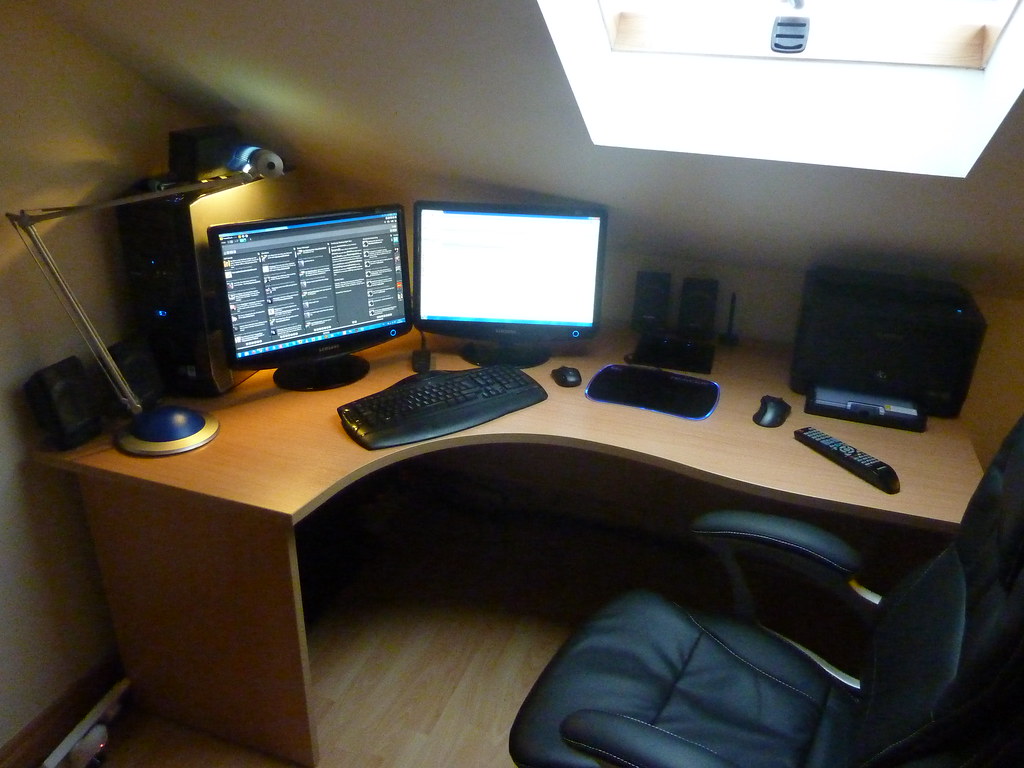
Photo by rintakumpu via flickr (BY)
Crafting Your Command Center: A Practical Guide to Home Office Implementation
Establishing an effective home office requires a methodical approach, moving beyond impulse purchases to strategic investments. This section breaks down the essential components, offering practical advice and examples for each.
I. The Foundational Infrastructure: Desk, Chair, and Monitor
These are the pillars of your physical workspace and warrant the most significant consideration.
The Desk:
- Height-Adjustable Desks: Increasingly popular, standing desks (or sit-stand desks) offer significant health benefits by encouraging movement and reducing prolonged sitting. Look for models with electric motors for smooth transitions and memory presets. Brands like Fully, Uplift Desk, and FlexiSpot offer robust options.
- Fixed-Height Desks: If a standing desk isn't feasible, ensure your fixed desk is at a comfortable height. The ideal desk height allows your arms to form a 90-degree angle at the elbow when typing, with your feet flat on the floor. Standard desk height is typically 29-30 inches (74-76 cm), but consider your own height.
- Surface Area: Adequate surface area is crucial. You need space for your monitor(s), keyboard, mouse, notebooks, and any other frequently used tools without feeling cramped. A minimum of 48-60 inches (120-150 cm) wide and 24-30 inches (60-75 cm) deep is a good starting point.
- Cable Management: Integrate cable management solutions from the outset. Desks with built-in grommets, cable trays, or even simple adhesive clips can keep your space tidy and prevent accidental disconnections.
The Ergonomic Chair: This is arguably the most critical investment for long-term health. OSHA provides guidance on ergonomic principles, emphasizing proper seating [^2].
- Adjustability: A truly ergonomic chair offers multiple adjustment points:
- Seat Height: Allows your feet to be flat on the floor with knees at a 90-degree angle.
- Lumbar Support: Adjustable to fit the curve of your lower back.
- Armrests: Height, depth, and pivot adjustable to support your forearms at keyboard height.
- Backrest: Recline and tension adjustments.
- Seat Depth: To ensure 2-4 inches between the back of your knees and the edge of the seat.
- Material: Breathable mesh or high-quality fabric can enhance comfort during long hours.
- Examples: High-end options like Herman Miller Aeron, Steelcase Gesture, or budget-friendly yet highly rated chairs from brands like Secretlab or Branch Ergonomic Chair.
- Adjustability: A truly ergonomic chair offers multiple adjustment points:
Monitors and Peripherals:
- Monitor Height & Distance: The top of your monitor should be at or slightly below eye level. Use a monitor arm or stand to achieve this. The screen should be an arm's length away.
- Dual Monitors: Many remote workers benefit from a dual-monitor setup for increased screen real estate, improving multitasking and efficiency.
- External Keyboard & Mouse: Even with a laptop, an external ergonomic keyboard and mouse are essential. They allow for proper posture, preventing wrist and neck strain. Consider mechanical keyboards for typing comfort and precision, and ergonomic mice like vertical mice or trackballs to reduce repetitive strain injuries.
- Webcam & Microphone: For video conferencing, built-in laptop cameras and microphones are often subpar. Invest in a dedicated 1080p or 4K webcam (e.g., Logitech Brio, Razer Kiyo) and a quality USB microphone (e.g., Blue Yeti, Rode NT-USB Mini) for clear communication.
II. Connectivity and Technology Backbone
Reliability here is paramount for uninterrupted work.
- Internet Service Provider (ISP): Choose the fastest and most reliable ISP available in your area. For remote work, aim for at least 100 Mbps download and 20 Mbps upload speeds, especially if you have multiple users or frequent video calls. Fiber optic connections are ideal.
- Router & Wi-Fi: Upgrade to a modern Wi-Fi 6 (802.11ax) router for better speeds, less latency, and improved capacity, especially in busy networks. Consider a mesh Wi-Fi system (e.g., Eero, Google Nest Wifi) if your home has dead zones.
- Wired Connection: Whenever possible, connect your primary work computer directly to the router via an Ethernet cable. This provides the most stable and fastest connection, reducing latency and dropped calls.
- Backup Solutions:
- Mobile Hotspot: Have a mobile hotspot or the ability to tether from your smartphone as a backup in case of internet outages.
- Uninterruptible Power Supply (UPS): A UPS provides battery backup for your computer and router during short power outages, allowing you to save work and gracefully shut down, or even continue working for a short period.
III. Lighting and Ambiance
The right lighting can significantly impact mood, focus, and eye health.
- Natural Light: Position your desk to maximize natural light, ideally facing a window or with the window to your side. Avoid having a window directly behind you (causes glare on screen) or directly in front of you (causes silhouetting on video calls).
- Task Lighting: A good desk lamp (e.g., with adjustable brightness and color temperature) is essential for focused work, reducing eye strain, especially during evening hours. Look for lamps with a high Color Rendering Index (CRI) for accurate color representation.
- Overhead/Ambient Lighting: Ensure your room has adequate general lighting. Avoid harsh fluorescent lights; warm LED lighting is generally more comfortable.
- Glare Reduction: Use anti-glare screen filters if necessary, and position monitors to avoid reflections from windows or overhead lights.
IV. Software and Digital Ecosystem
Your digital toolkit is just as crucial as your physical setup. Atlassian's blog frequently discusses tools for remote collaboration [^3].
- Communication Platforms: Slack, Microsoft Teams, Zoom, Google Meet are indispensable for real-time communication and video conferencing.
- Project Management Tools: Asana, Trello, Jira, Monday.com help organize tasks, track progress, and facilitate team collaboration.
- Cloud Storage & Collaboration: Google Drive, Microsoft OneDrive, Dropbox allow for seamless file sharing, document co-editing, and accessibility from any device.
- Productivity Suites: Microsoft 365 or Google Workspace provide essential applications like word processors, spreadsheets, and presentation tools.
- Security Software: Robust antivirus/anti-malware software, a firewall, and potentially a Virtual Private Network (VPN) are critical for protecting sensitive data.
V. Personalization and Well-being
Your home office should be a place where you feel comfortable and inspired.
- Decluttering: A clean and organized space reduces mental clutter. Implement filing systems, drawer organizers, and minimal decor.
- Plants: Introducing indoor plants can improve air quality and reduce stress.
- Personal Touches: Photos, artwork, or small mementos can make the space feel more inviting and personal.
- Noise Cancellation: If your home environment is noisy, consider noise-canceling headphones, a white noise machine, or sound-absorbing panels.
- Breaks & Movement: Schedule regular micro-breaks. Use a standing desk, take short walks, or incorporate simple stretches to combat sedentary behavior.
Common Mistakes and Risks to Avoid
Even with the best intentions, several pitfalls can undermine a home office setup. Awareness is the first step to avoidance.
- Neglecting Ergonomics: The most common and damaging mistake. Sacrificing an ergonomic chair or proper monitor height to save money upfront leads to long-term pain, reduced productivity, and potential health issues like carpal tunnel syndrome, back pain, and neck strain. This is a false economy.
- Poor Internet Reliability: Relying solely on inconsistent Wi-Fi or a slow connection can tank productivity. Dropped calls, slow uploads, and buffering video meetings create frustration and professional embarrassment. Not investing in a robust connection and backups is a critical oversight.
- Lack of Dedicated Space: Working from the couch, bed, or kitchen table blurs the lines between work and home life. This makes it harder to "switch off," leading to burnout and decreased focus. Even a small corner can be designated as a work zone.
- Inadequate Lighting: Working in dimly lit or overly bright, glary conditions causes eye strain, headaches, and fatigue. It also affects your appearance on video calls.
- Ignoring Cybersecurity: Home networks are often less secure than corporate ones. Using weak passwords, neglecting software updates, or not employing a VPN (if required by your employer) exposes you to significant data breaches and cyber threats.
- Information Overload & Digital Clutter: An unmanaged digital workspace with countless open tabs, disorganized files, and ignored notifications can be as distracting as a messy physical desk.
- Isolation & Lack of Social Interaction: While not directly a setup issue, a home office can exacerbate feelings of isolation. Failing to proactively engage with colleagues via video calls, virtual coffee breaks, or team-building activities can negatively impact mental well-being. HBR frequently discusses the challenges of remote work isolation [^4].
- Insufficient Power Outlets & Cable Chaos: Running out of outlets or having a tangle of cables creates a hazardous and unsightly mess. Not planning for power needs and cable management from the start leads to frustration and potential electrical issues.
Frequently Asked Questions
What is the single most important investment for a home office?
Without a doubt, an ergonomic office chair. While a good desk and monitor setup are crucial, your chair directly impacts your posture, comfort, and long-term physical health more than any other single item. A high-quality ergonomic chair with multiple adjustment points can prevent back pain, neck strain, and other repetitive strain injuries, making it a foundational investment for sustained productivity and well-being.
How can I create a dedicated workspace if I live in a small apartment?
Even in limited spaces, the principle of a "dedicated zone" is paramount. This doesn't necessarily mean a separate room. Consider using a room divider, a tall bookshelf, or even a strategically placed plant to visually separate your work area. A "cloffice" (closet office) or a wall-mounted fold-down desk can be excellent solutions. The key is to establish a clear boundary, both physically and mentally, between your work and personal life, even if it’s within the same room.
What are essential cybersecurity practices for a home office?
Beyond corporate-provided security, you should: use strong, unique passwords for all accounts (and a password manager); enable two-factor authentication (2FA) wherever possible; keep your operating system and all software updated; secure your Wi-Fi network with a strong password (WPA2 or WPA3 encryption); avoid public Wi-Fi for sensitive work; and be vigilant against phishing attempts. If your company provides a VPN, always use it for work-related activities.
How do I maintain work-life balance when my office is at home?
This is a critical challenge. Establish firm start and end times for your workday and stick to them. Create a "commute ritual," even if it's just a short walk around the block before and after work. Physically "shut down" your home office at the end of the day by turning off monitors, closing your laptop, and putting away work-related items. Avoid checking work emails or messages outside of work hours, and ensure you schedule regular breaks throughout the day.
Should I invest in a standing desk? Are they really beneficial?
Yes, standing desks offer significant benefits. Prolonged sitting is linked to various health issues. A standing desk encourages movement, can improve circulation, reduce back pain, and increase energy levels. While you shouldn't stand all day, alternating between sitting and standing throughout your workday is highly recommended. Look for an electric sit-stand desk that allows for easy, fluid transitions and memory presets for your preferred heights.
What's the optimal lighting setup for reducing eye strain?
The ideal setup combines natural light with balanced artificial lighting. Position your desk to use natural light without direct glare on your screen or shining directly into your eyes. Supplement this with a good quality desk lamp (task lighting) that offers adjustable brightness and color temperature (e.g., from warm to cool white). Ensure overhead ambient lighting is soft and even, avoiding harsh spotlights. Anti-glare screen filters can also be beneficial.
References
[^1]: Microsoft Work Trend Index: https://www.microsoft.com/en-us/worklab/work-trend-index
[^2]: OSHA Telework Guidance: https://www.osha.gov/telework
[^3]: Atlassian Remote Work Blog: https://www.atlassian.com/blog/remote-work
[^4]: Harvard Business Review Remote Work: https://hbr.org/topic/subject/remote-work
This guide is intended for general educational purposes and should not be taken as professional advice for specific health, safety, or technical requirements.
Referenced Sources
- Microsoft Work Trend Index — Microsoft
- OSHA Telework Guidance — OSHA
- Atlassian Remote Work Blog — Atlassian
- Harvard Business Review Remote Work — HBR